We use cookies to improve your experience on our website.
By browsing this website, you agree to our use of cookies.

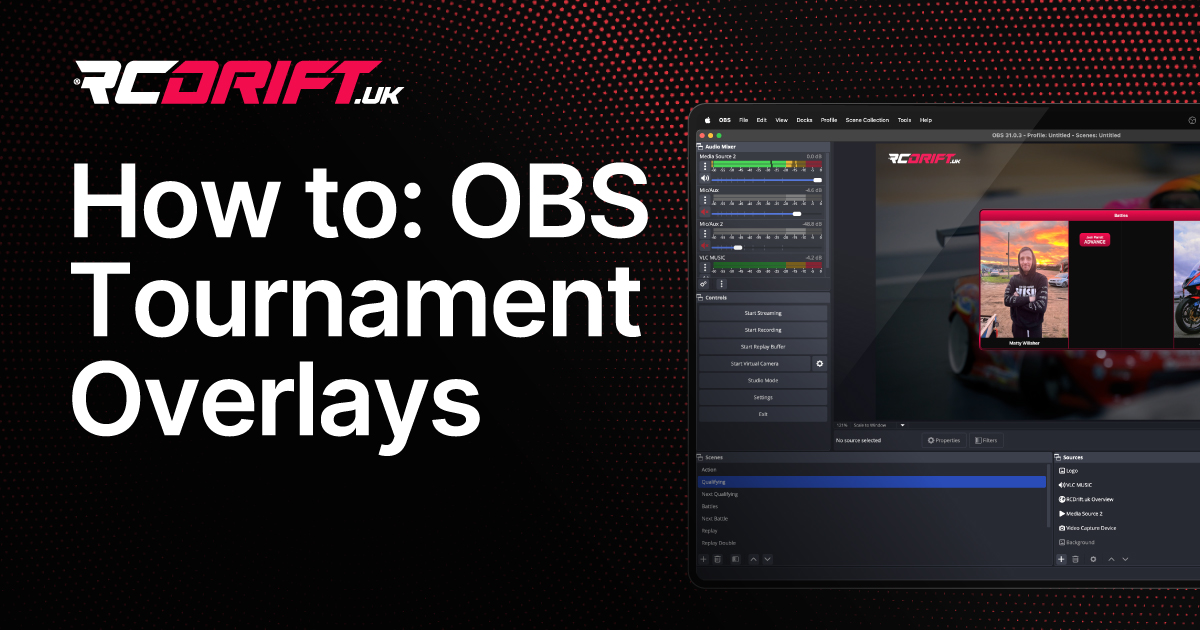
How to: OBS Tournament Overlays
9th August 2025
If you’re running RC drifting competitions and want to share live results with your audience, RCDrift.uk makes it easy to integrate your tournament data directly into your OBS broadcast overlays. With our built-in tournament embed feature, you can display real-time results, including live qualifying order, live battle results, and the final podium—all without manually updating your stream.
Why We Offer This
We know how important it is for event hosts and streamers to deliver professional, live-updating visuals. By using our tournament overlays in OBS, you can:
- Keep viewers fully informed without screen-sharing or manual edits.
- Match overlays to your event’s branding with custom CSS.
- Switch between different displays for various stages of your event.
Once set up, these overlays will always update automatically—no refreshing needed.
Supported Overlays & Features
Our tournament embeds currently support:
-
Overview Overlay Displays the current qualifying results during qualifying sessions, the current battle results during battles, and the final podium once the tournament concludes.
-
Qualifying Overlay Shows the complete qualifying order, scores, and run details.
-
Battle Bracket Overlay Works for both Upper and Lower brackets, and supports Double Elimination formats.
How to Embed RCDrift.uk Tournaments into OBS
Follow these steps to add a tournament overlay into your OBS setup:
1. Choose Your View
On the tournament page at RCDrift.uk, select the view you want to display by clicking the relevant tab:
- Overview
- Qualifying
- Battles (Upper or Lower Bracket)
2. Open the Fullscreen Embed View
In the top right corner of the tournament view, click the square fullscreen/embed icon. This will reformat the page for embedding—removing unnecessary menus and UI elements.
3. Copy the URL
Once the fullscreen view is open, copy the URL from your browser’s address bar.
4. Add a Browser Source in OBS
- In OBS, click the + button under Sources and select Browser.
- Give your source a name (e.g., Qualifying Overlay).
- Paste the copied URL into the URL field.
- Set your desired resolution (e.g., 1920×1080) and click OK.
Your tournament overlay will now display in OBS and update automatically as results come in.
Customising the Overlay with CSS
OBS Browser Sources allow you to inject custom CSS to match your brand colours, fonts, and layout preferences. For example:
body {
  background: transparent;
}
h1, h2, h3 {
  color: #FF3366;
  font-family: 'Montserrat', sans-serif;
}
This way, your overlays won’t just be functional—they’ll look like a seamless part of your production.
Pro Tips
- Scene Switching: Create separate OBS scenes for each overlay type so you can switch between Qualifying, Battles, and Overview with a single click.
- Transparency: If you want overlays to appear on top of camera feeds, make sure to set a transparent background in your CSS.
- Double Elimination: If you’re running double elimination, you can have both Upper and Lower bracket views ready to switch between live.
Conclusion
By embedding RCDrift.uk tournament views into OBS, you get fully automated, real-time updating overlays that keep your audience informed and your broadcast professional. With a few clicks and optional CSS tweaks, you’ll have tournament visuals that match your event’s style—and you’ll never need to manually update scores again.